familyfi
🎉 Launch offer · ends 31 Dec 2026

Your family's money,
finally in one place.

Insurance, loans, investments, bank and card spending for the whole family, in one private planner. See your real net worth today and every renewal before it is due.
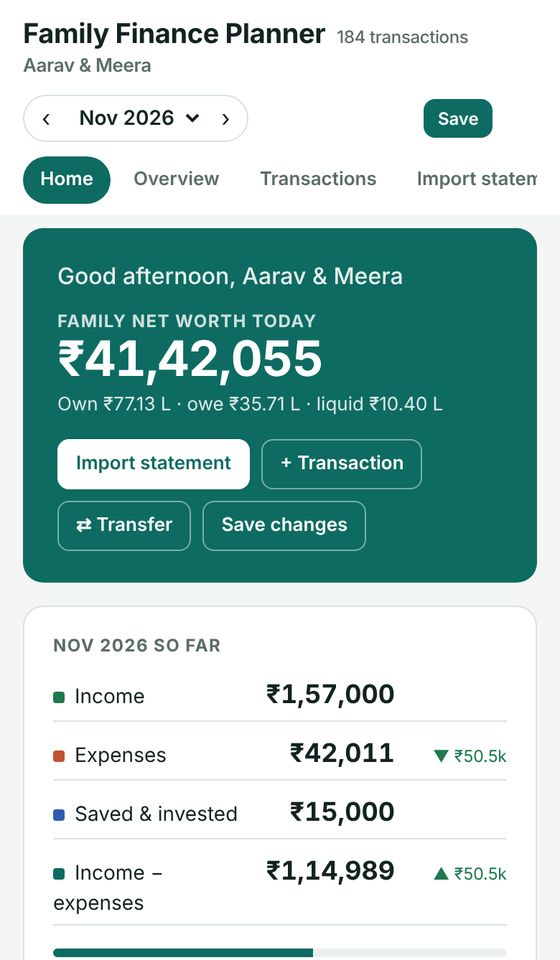
No card needed for the trial · Works on phone and laptop · Sign in with Gmail
Family Finance Planner home screen with sample family data
🔒 Your data stays in your Google Drive📱 Phone + laptop🇮🇳 Made in India for Indian families📈 Live MF NAVs & share prices
How it works

Start in 2 minutes. Nothing to install.

The online planner is a private web app that runs under your own Google account.

1

Open the app

Tap Start free trial. It opens in your browser on phone or laptop. Add it to your home screen if you like.

2

Sign in with Gmail

Google asks you to allow the app to save in your Drive. New apps show a "not verified" note: tap Advanced → Continue.

3

Explore, then set up

Look around with a sample family, then add your members, accounts and policies. Your 15-day trial starts automatically.

What you get

Everything your family's finances need

Insurance

Every policy, every renewal, never missed

Term, health, car, LIC: cover, nominee, claim contacts and the policy copy itself.
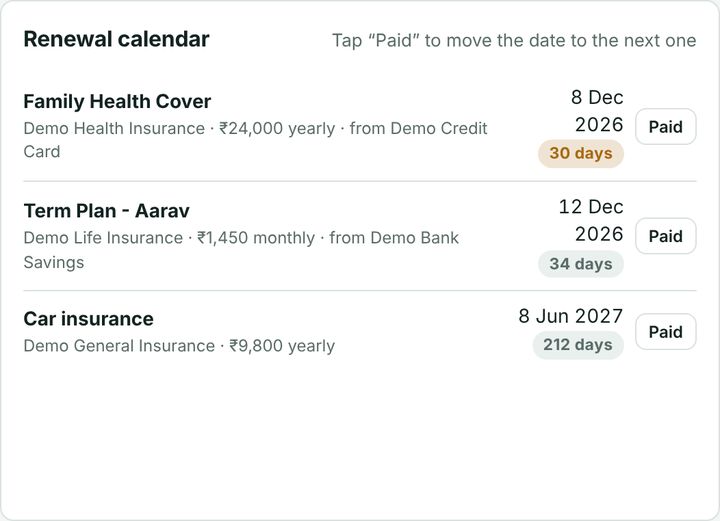
  • Renewal reminders on your home screen
  • Tap "Paid" and the next date is set
  • See who in the family is covered, and for how much
Renewal calendar
Spending NEW

Paste a bank SMS. It's recorded.

No statement yet? Paste the debit SMS. The account is found from its last 4 digits.
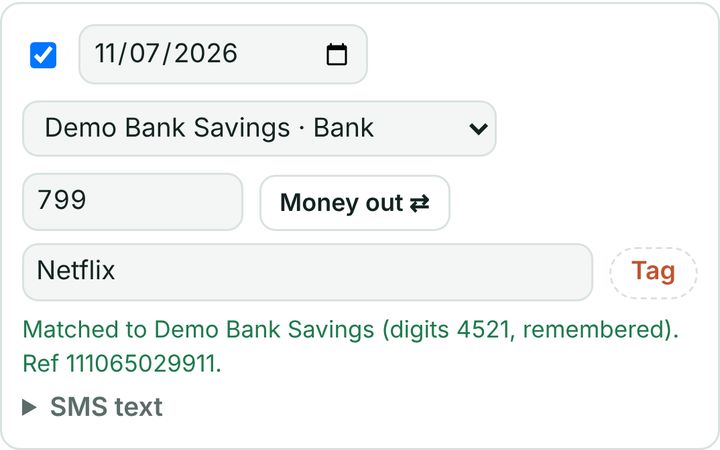
  • Import bank & card statements: Excel, CSV or PDF
  • Entries tag themselves from your history
  • The statement later replaces SMS entries: nothing counted twice
Add from bank SMS
Loans

Know what your home loan really costs

Home, top-up, car and personal loans with the real outstanding and the interest still to pay.

  • See what a prepayment saves before you pay
  • New end date for any extra EMI
  • Full amortization schedule
Interest still to pay
Investments & net worth

Your real net worth, today

Mutual funds, shares, FD, PPF, EPF, NPS, gold and property, minus your loans.
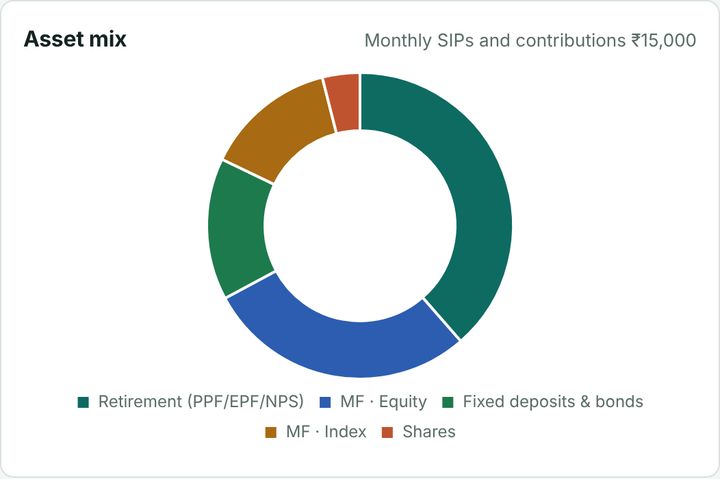
  • Live MF NAVs (AMFI) and NSE/BSE prices in the online edition
  • Asset mix for you and your spouse
  • Financial health check: emergency fund, cover, savings rate
Asset mix
Budget & cash flow

See where the salary goes, and what is still to pay

Budgets, month-to-month comparison, a spending heatmap and every credit-card due date.
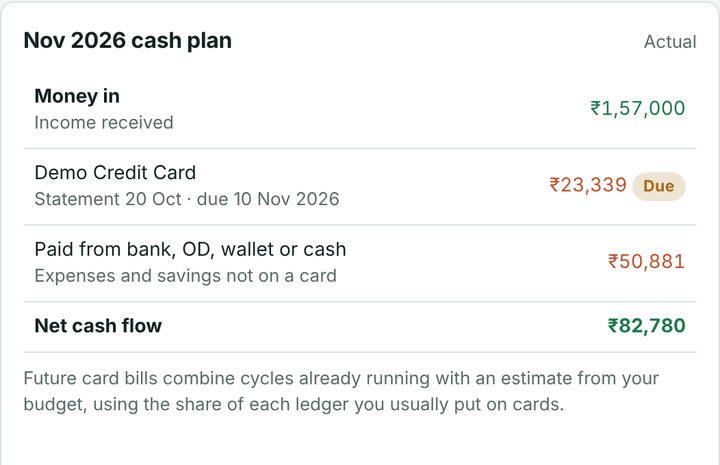
  • Budget vs actual before the month ends
  • Card billing cycles and due dates
  • Money still to come and go this month
Monthly cash plan
Private by design

We never see your data.

Most finance apps keep your data on their servers. This one doesn't.

Your Google DriveEverything is saved in a folder in your own Drive, under your Google account.
No bank loginsYou never give us bank passwords. You import statements or paste SMS yourself.
Passphrase lockOptional AES-256 encryption: without your passphrase, the data is unreadable.
Daily backups30 daily backups in your Drive. Restore any of them in one tap.
Pricing

Try free for 15 days. Then choose.

Online plans start with the free trial. Prices in ₹, including all features.

Best value

Online · Yearly

Phone + laptop · all updates
₹999₹1,499/ year
  • Live MF NAVs & share prices
  • Saved in your Google Drive, daily backups
  • SMS entry, statement import, all reports
  • All new features included
Start free trial

Online · Monthly

Same features, pay monthly
₹99₹149/ month
  • Everything in Yearly
  • Stop any time
  • Switch to yearly later
Start free trial

Offline · Lifetime

One file on your computer, no internet
₹699₹999once
  • Pay once, use this version for life
  • Works without internet
  • Prices of funds & shares typed by you
  • Future updates not included
Buy offline edition
Licensed to your name, delivered by email
🎉 Launch offer prices end in —
User guide

New here? Your first 10 minutes.

Follow these steps once. After that, a few minutes a week keeps your family’s numbers up to date. Want every detail? Read the full user manual →

Open the planner link

Use Chrome, Edge or Safari on your phone or laptop and sign in with your Gmail. Tap Start free trial on this page to get the link.

Allow Google access

If Google shows “This app isn’t verified”, tap Advanced → Go to Family Finance Planner → Allow. The planner only creates and uses its own folder in your Drive.

Create your planner

Type a planner name, your family members, and your bank accounts, cards and cash. Tap Create my planner. 74 Indian household categories are added for you.

Want to look first? Explore with sample data

Add the last 4 digits of each account

This lets the planner match bank SMS and statements to the right account.

My accounts › edit account › last 4 digits

Import your first statement

Choose the account and drop in the Excel, CSV or PDF statement (password PDFs work). Check the column matching once; it is remembered.

Import statement

Bookmark it on every device

On your phone use Add to Home screen so it opens like an app. Your free trial end date is shown at the bottom of every page.

Everyday use

Tap a topic to open it.

Add a spend straight from a bank SMS
  1. Open Transactions and tap ✉ Add from SMS.
  2. Paste the debit or credit SMS from your bank or card. The amount, date, merchant and account (from the last 4 digits) are read for you.
  3. Check the row and tap Add this SMS. When you later import that account’s statement, the statement line replaces the SMS entry, so nothing is counted twice.
Import a bank or card statement
  1. Open Import statement, choose the account and drop in the file.
  2. Review the rows. Most are tagged automatically from your history; rows already recorded are left out, so overlapping statements never create duplicates.
  3. Tap Import. Anything untagged waits under Transactions → Show: To review. Tag it once and the planner learns.

Tip: if a PDF does not read well, download the Excel/CSV version from your bank. Scanned (photo) PDFs cannot be read.

Card payments and transfers between your own accounts
  • Card bill payments, bank-to-bank transfers and cash withdrawals are transfers: they never count as income or spending.
  • Use Transactions → ⇄ Transfer between accounts, or tag a row as Card Payment / Bank Transfer and its other side is found automatically.
Set a monthly budget
  • Type numbers straight into the Budget grid. Fill › copies a month’s figure to the rest of the year.
  • Compare and Expense trends show month-to-month changes and which expenses you can trim.
  • Plan & funds shows what is still to come this month and your expected funds for the next 12 months.
Add investments (mutual funds, shares, FDs, PPF)
  • Mutual funds: type part of the fund name and pick the exact scheme. Units and NAV come from your CAS statement. Online, the NAV updates every day by itself.
  • Shares: type the company name or NSE symbol and pick it. For a BSE-only share use its 6-digit BSE code. Prices can be up to 20 minutes late.
  • Unlisted shares or anything not found: save it with a manual price and update it any time.
Track loans and see prepayment savings
  • Enter the outstanding principal, rate and EMI from your loan statement.
  • Try an extra monthly payment or a one-time prepayment to see the interest saved and the new end date.
Keep insurance renewals on time
  • Add each policy with its cover, premium and next due date. Renewals show on Home when they are near.
  • Tap Paid to roll the date to next year. Attach the policy PDF so family members can find it.
Lock the planner with a passphrase (optional)
  1. Open Home → Privacy & security, type a passphrase of at least 8 characters twice and tap Turn on encryption.
  2. Write down the recovery code shown (four groups of five) and tap I have saved it.
  3. The planner then asks for the passphrase each time it opens and locks itself after 15 minutes without use.
Nobody, including us, can open your data without your passphrase or recovery code. If you lose both, the data cannot be recovered.
Backups and restoring
  • Online: every change saves to your Drive within seconds, and a daily backup is kept for 30 days.
  • Accounts & categories → Backup: back up now, restore any daily backup, or export everything to Excel.
  • Offline: every Save writes a dated copy into your backup folder.
Something looks wrong
  • “Changed on another device”: another device saved first. Tap Reload latest so nothing is overwritten.
  • A row has the wrong sign: flip it with ⇄.
  • Trial or plan ended: your data stays safe in your Drive and opens again as soon as you renew. Renewing early never loses days.
  • Still stuck? Write to familyfi.app@gmail.com with a screenshot (hide any account numbers).
Never store passwords, PINs, OTPs, CVV or full card numbers in the planner. It needs only the last 4 digits.
User manual

Family Finance Planner: the complete manual

Everything a new user needs, in order. Read chapters 1 to 4 on day one; come back to the rest when you need it. Direct link to this manual: nisnil.co.in/familyfi/#manual

1Before you start

  • Online edition: a Gmail account, and Chrome, Edge or Safari on phone or laptop.
  • Offline edition: a Windows or Mac computer with Chrome or Edge. No internet needed after you receive the file.
  • Keep ready: the list of your bank accounts, credit cards and cash wallets, and the last 4 digits of each. One recent statement per account (Excel, CSV or PDF) makes the first day useful.
  • Optional: your mutual fund CAS statement, loan statement, and insurance policy details.
The planner never needs passwords, PINs, OTPs, CVV or full card numbers. Never type them in.

2Sign in and start your free trial (online)

  1. On this page tap Start 15-day free trial. The planner opens in a new tab.
  2. Sign in with your Gmail. Use the same Gmail later when you pay, so your plan attaches to your data.
  3. Google asks permission to use your Drive. If it shows “Google hasn’t verified this app”, tap Advanced → Go to Family Finance Planner → Allow. The planner only creates and uses its own folder.
  4. Your trial end date shows at the bottom of every page. Seven days before it ends, a reminder with renewal links appears.
  5. On your phone, open the browser menu and tap Add to Home screen so it opens like an app.

Offline edition instead? Save the file you receive in a backed-up folder (OneDrive, Google Drive or iCloud folder), then double-click it to open in Chrome or Edge.

3Set up your planner (5 minutes, once)

  1. Type a planner name, for example Sharma Family, and add family members.
  2. Add each bank account, credit card and cash wallet with its opening balance.
  3. Tap Create my planner. 74 ready-made Indian household categories are added: rent, groceries, EMIs, SIPs, insurance, school fees and more. You can rename or add your own later.
  4. Open My accounts › edit account and type the last 4 digits for each account and card. This is how bank SMS and statements find the right account.

Want to look around first? Tap Explore with sample data. Clear it later under Accounts & categories › Planner.

4A tour of the screens

ScreenWhat you do there
HomeNet worth, this month’s income and spending, items needing attention (bills, renewals), and a tile for every section.
Transactions & ImportEvery entry, with filters. Import statements, add from SMS, record transfers, and clear the To review list.
Budget · Compare · Expense trendsMonthly budget grid, month-to-month comparison, and a heatmap that shows which expenses to trim.
Plan & funds · Cards & cash flowWhat is still to come this month, expected funds for 12 months, and credit-card cycles and due dates.
Net worth · Investments · LoansMutual funds, shares, FDs, PPF and property; loan schedules with prepayment savings; a financial health check.
Insurance & My accountsPolicies with renewal dates, cover and claim contacts; banks, cards, demat and folios; a document vault.
Privacy & securityWhere your data lives, the optional passphrase lock, and your licence details.

5Recording money

A. Import a bank or card statement (fastest)

  1. Open Import statement, pick the account, drop in the Excel, CSV or PDF file. Password-protected PDFs work: type the password when asked.
  2. For Excel/CSV, confirm the column matching once. It is remembered for that account.
  3. Review the rows. Most are tagged from your history; rows already recorded are skipped, so overlapping statements never double count.
  4. Tap Import. Untagged rows wait under Transactions › Show: To review. Tag once and the planner learns.

B. Add from a bank SMS (daily, 10 seconds)

  1. Copy the debit or credit SMS from your phone.
  2. Open Transactions → ✉ Add from SMS and paste. Amount, date, merchant and account (from the last 4 digits) are filled in.
  3. Check and tap Add this SMS. When you later import that month’s statement, the statement line replaces the SMS entry, so nothing counts twice.

C. Transfers between your own accounts

Card bill payments, bank-to-bank transfers and cash withdrawals are transfers, not spending. Use Transactions → ⇄ Transfer between accounts, or tag a row as Card Payment or Bank Transfer and the other side is matched for you.

D. Cash and one-off entries

Use Add transaction on Transactions, choose the cash wallet or account, category and amount. A row with the wrong sign can be flipped with ⇄.

6Budgets and plans

  • Type figures straight into the Budget grid. Fill › copies one month to the rest of the year.
  • Compare shows budget versus actual and month versus month. Expense trends highlights categories that keep rising.
  • Plan & funds shows bills still due this month and expected savings for the next 12 months.
  • Cards & cash flow lists each card’s billing cycle and due date so you never pay interest.

7Investments, loans and insurance

  • Mutual funds: type part of the fund name and pick the exact scheme; take units from your CAS statement. Online, NAV updates daily by itself.
  • Shares: type the company name or NSE symbol (BSE-only: 6-digit code). Prices may be up to 20 minutes late. Anything not found can use a manual price.
  • FD, PPF, property: add the amount and dates; they count in Net worth.
  • Loans: enter outstanding principal, rate and EMI from the loan statement. Try an extra monthly payment or a one-time prepayment to see interest saved and the new end date.
  • Insurance: add each policy with cover, premium and next due date. Renewals appear on Home when near; tap Paid to roll to next year, and attach the policy PDF for your family.

8Lock with a passphrase (optional)

  1. Open Home › Privacy & security, type a passphrase of 8+ characters twice (a short sentence is easiest), and tap Turn on encryption.
  2. Write down the recovery code (four groups of five) on paper or in a password manager, then tap I have saved it.
  3. The planner now asks for the passphrase each time and locks after 15 minutes idle. Forgot it? Tap Use your recovery code on the lock screen.
Nobody, including us, can open your data without the passphrase or recovery code. Lose both and the data cannot be recovered.

9Backups

  • Online: every change saves to your own Drive within seconds; a daily backup is kept for 30 days. Accounts & categories › Backup lets you back up now, restore a day, or export everything to Excel.
  • Offline: press Save or Ctrl + S after changes (first time, choose the same file). Set a backup folder under Accounts & categories › Your file & backup; every Save writes a dated copy (last 30 kept).
  • Good habit: make an Excel copy once a month. It opens even without the planner.

10Plans, renewal and using it as a family

  • Choose Monthly or Yearly before the trial ends (see Pricing). Pay with the same Gmail. Renewing early never loses days.
  • If a plan ends, your data stays safe in your Drive and opens again as soon as you renew.
  • Spouse or family: online, open the same link on any device signed in to the same Google account. Offline, keep the file in a shared cloud folder and use one computer at a time.
  • “Changed on another device” means another device saved first: tap Reload latest.

11Your first-week checklist

  • Day 1 · Create the planner and add all accounts with last 4 digits
  • Day 1 · Import one statement for your main bank account
  • Day 2 · Import your credit-card statement and tag card payments
  • Day 3 · Fill this month’s budget with Fill ›
  • Day 4 · Add insurance policies and their renewal dates
  • Day 5 · Add loans and try one prepayment scenario
  • Day 6 · Add mutual funds and shares; check Net worth
  • Day 7 · Add from SMS for daily spends; clear the To review list

Still stuck? Email familyfi.app@gmail.com with a screenshot (hide account numbers) or message @familyfi.app on Instagram.

FAQ

Questions families ask

Is my financial data safe?

Your data is saved only in your own Google Drive (online) or your own file (offline). We, the seller, cannot open it. You can also lock it with a passphrase (AES-256).

Do I have to connect my bank account?

No. You never share bank passwords. You import statements (Excel, CSV, PDF) or paste bank SMS yourself.

Google says "This app isn't verified". Is that OK?

Yes. New apps show this until Google's review is complete. Tap Advanced → Go to Family Finance Planner. The app only creates and uses its own folder in your Drive.

Does it work on my phone?

Yes. The online edition works in any phone or laptop browser with the same data everywhere. Tip: use "Add to Home screen" to open it like an app.

What happens after the 15-day trial?

Choose Monthly or Yearly to continue. If you don't, the app pauses, and your data stays safely in your Drive for when you come back.

Can my spouse use it too?

Yes, the planner is built for the whole family: members, their policies, investments and accounts. One plan covers one Google account; share access with your spouse on the same login or ask us about a second account.

What is the difference between online and offline?

Online: hosted link, phone + laptop, live NAVs and share prices, all updates. Offline: one file on your computer, no internet, you type prices yourself, lifetime use of that version.

Is this investment advice?

No. The planner organises and calculates your own information. It does not recommend products, returns or tax decisions.

Bring your family's money into one place.

15 days free. No card needed. Your data stays yours.

Start free trial

Start 15-day free trial